Copying the same caption into Facebook, then Instagram, then LinkedIn, then TikTok gets old fast. It’s also where mistakes creep in: the wrong image crop, a broken link, a hashtag wall on LinkedIn. The better way is to write once and post to multiple social media platforms at once, while still tailoring each version.
This guide shows how cross-posting works in practice, using real screenshots of the GoBrandIt post composer. You’ll see how to pick accounts, choose post types, add media, write with AI, preview the result and schedule it.
Why post to multiple social media platforms from one place?
- It saves time. One composer replaces a stack of apps and logins.
- Your message stays consistent. Launches, offers and announcements go out everywhere with the same details.
- You still get native-looking posts. A good composer lets you adjust each network’s version before it goes out.
- Everything lands on one calendar, so you can see what’s going where and when.
The key is cross-posting with care, not blindly copying. More on that below.
Step 1: Pick the accounts you want to post to
Open the composer and select the accounts at the top. You can mix networks in one post, for example a Facebook Page, an Instagram business account and a WordPress site.
GoBrandIt connects to Facebook Pages, Instagram, Threads, LinkedIn, TikTok, Bluesky, Mastodon, Pixelfed and WordPress, among others. See the full list on our integrations page.
Step 2: Choose the right post type
Different networks have different formats. For Instagram, the composer lets you choose Post, Reel or Story before you write, so the preview and publishing match the format you want.
Pick the format first, because it changes how you write. A Reel caption can be short and punchy, while a carousel post can carry more detail.
Step 3: Add your media
Click the image icon in the editor to open the media library. You can upload your own images and videos, search stock photos, add GIFs, or start a new design with Canva without leaving GoBrandIt.

Add alt text to your images too. In the composer, an ALT badge on the thumbnail shows it’s been set. Alt text helps people using screen readers and helps platforms understand your image. Our guide to scheduling Canva posts covers the design side in more detail.
Step 4: Write your caption (or start with AI)
Write the main caption in the editor. The toolbar gives you quick access to:
- Emoji for tone
- Media to add or change images and video
- Hashtags, which opens the Hashtag Manager so you can insert saved hashtag groups
- Variables for reusable text
- AI Assist to draft, improve or fix your caption
A character counter shows how much room you have left.
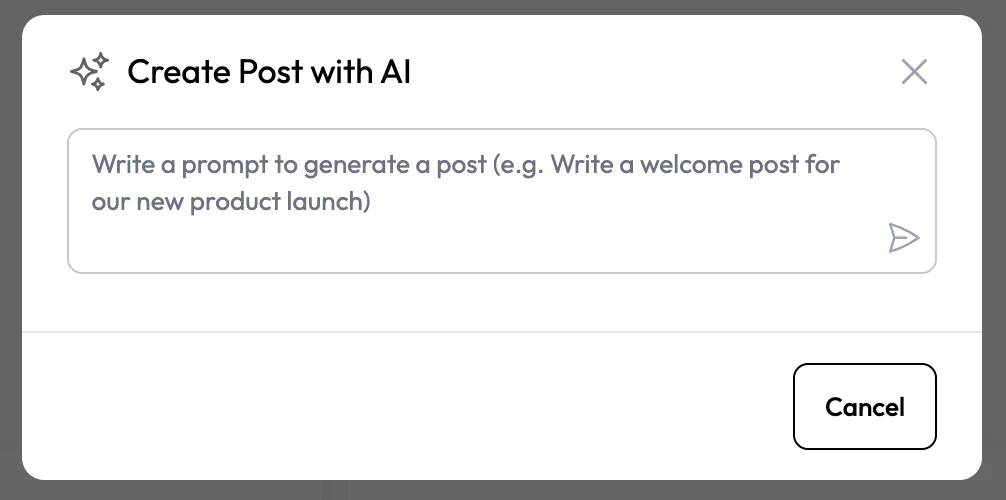
Stuck on a blank page? Use Create with AI from the sidebar and describe the post you want, such as “Write a welcome post for our new product launch”.
For a full walkthrough of the AI tools, read how to write social media captions with AI.
Step 5: Tailor each network’s version
This is what separates good cross-posting from spam. Before you publish, adjust each network’s version:
| Network | What to adjust |
|---|---|
| Strong first line, up to 5 hashtags, portrait image | |
| Slightly longer caption, a link if it matters | |
| A clear takeaway, fewer or no hashtags, professional tone | |
| TikTok | Vertical video, short caption, on-screen text |
| Threads and Bluesky | Short, conversational text within the character limits |
Instagram now allows a maximum of 5 hashtags per post. Here’s our Instagram hashtag strategy for choosing them.
Step 6: Check the live preview
The Preview tab on the right shows how your post will look on the network, including the image crop and where the caption gets cut off. It’s the fastest way to catch a bad crop or a first line that doesn’t land.

Next to Preview, the Activity tab shows the history of the post, and Analytics shows how it performed after publishing.
Step 7: Post now, schedule or queue
At the bottom of the composer you have four options:
- Labels to tag the post by campaign, client or content pillar
- Schedule time to pick a specific date and time
- Post now to publish immediately
- Add to Queue to drop it into your next free time slot
The status in the corner shows whether the post is a draft and whether your changes are saved. If a manager or client needs to sign off, send it through your approval workflow first.
Cross-posting mistakes to avoid
- Identical captions everywhere. Tailor each version.
- Wrong format. A landscape photo looks poor as a Story or Reel.
- Tagging people who don’t exist on that network. Handles differ between platforms.
- Hashtag overload. Keep hashtags relevant, and within Instagram’s 5-tag limit.
- Posting everything at the same minute. Stagger times based on when each audience is active. See the best time to post on social media.
Frequently asked questions
Can I post to Facebook, Instagram and LinkedIn at the same time?
Yes. Select all three accounts in the composer, tailor each version if needed, and publish or schedule them together.
Is cross-posting bad for reach?
Not if each version fits the network. Problems come from copying the same caption, hashtags and format everywhere. Tailor the details and cross-posting works well.
Can I schedule Instagram Stories and Reels from GoBrandIt?
Yes. In the composer, choose Post, Reel or Story under Instagram options before you publish or schedule.
Can I post to my WordPress site too?
Yes. WordPress is one of the destinations you can connect in GoBrandIt, alongside social networks.
Write once, look native everywhere
A good composer turns cross-posting from a chore into a two-minute task. Pick your accounts, add media, write or generate your caption, tailor each version, preview and schedule. Try GoBrandIt free and publish your first multi-network post today. For the full scheduling workflow, see how to schedule social media posts.