A blank caption box is one of the biggest time sinks in social media. AI can get you from nothing to a solid first draft in seconds, but only if you use it well. Used badly, it produces the same bland, emoji-stuffed captions everyone else is posting.
This guide shows how to write social media captions with AI that still sound like your brand, with prompts you can copy and real screenshots of GoBrandIt’s AI tools.
Why use AI for social media captions?
- Speed. Get several caption options in the time it takes to write one.
- Beat writer’s block. A rough draft is easier to improve than an empty box.
- Variations for each network. Turn one idea into a LinkedIn post, an Instagram caption and a short Threads post.
- Clean copy. Fix spelling and grammar before anything goes live.
AI works best as a fast first-draft writer and editor. You still bring the facts, the offer and the voice.
Two ways to use AI in GoBrandIt
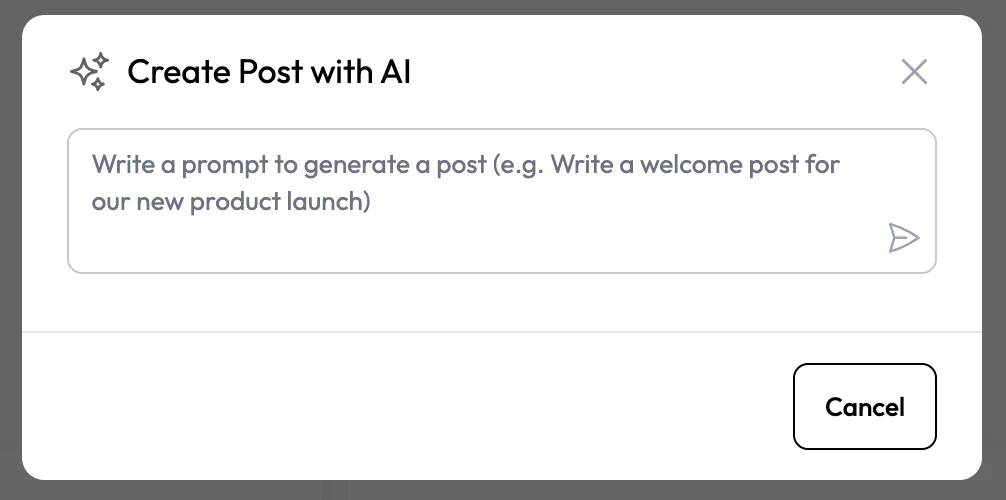
1. Create Post with AI: start from a prompt
Click Create with AI in the sidebar and describe the post you want. GoBrandIt writes a draft and opens it in the composer, ready to edit, add media and schedule.
2. AI Assist: improve what you’ve written
Inside the composer, open AI Assist from the editor toolbar. It can work with the caption you already have:
- Improve Writing to make it clearer and more engaging
- Fix Spelling & Grammar to clean it up
- Retry for a different version
- Insert or Replace to put the result in your caption
- Generate Image to create a matching visual
Everything happens in the same place you schedule, so there’s no copying between a chatbot and your scheduler. See the full feature on our AI content assistant page.
How to write social media captions with AI: start with a good prompt
Vague prompts produce vague captions. A good prompt includes five things:
- Platform: Instagram, LinkedIn, Facebook, TikTok, Threads
- Goal: sales, sign-ups, comments, awareness
- Details: product, price, date, location, offer
- Audience: who it’s for
- Tone and length: friendly, professional, playful; short or detailed
Weak prompt: “Write a post about our sale.”
Strong prompt: “Write a short, friendly Instagram caption for a Dashain sale at our clothing shop in Kathmandu. 20% off all kurtas from 1 to 10 October. Audience: women aged 20 to 35. End with a call to action to DM us. Maximum 3 hashtags.”
Caption prompts you can copy
| Goal | Prompt |
|---|---|
| Product launch | “Write an Instagram caption announcing [product]. Lead with the main benefit, keep it under 60 words, end with ‘Link in bio’.” |
| Offer | “Write a Facebook post for [offer] valid until 2026. Include the price, how to order and a sense of urgency without sounding pushy.” |
| LinkedIn thought leadership | “Write a LinkedIn post sharing one lesson from [experience]. Start with a strong first line, use short paragraphs, no hashtags.” |
| Engagement | “Write three question-style captions that get people to comment about [topic].” |
| Repurpose | “Rewrite this caption for Threads in under 200 characters, conversational tone: .” |
| Nepali audience | “Write a short caption in simple English with a few Nepali words for [occasion], warm and festive.” |
Need more topics to prompt from? Browse our 50 social media post ideas.
Editing AI captions so they sound like you
Treat the AI’s output as a draft. Before you schedule:
- Check every fact. Prices, dates, names and claims must be correct.
- Cut the filler. Remove phrases like “In today’s fast-paced world” and “Unlock the power of”.
- Add something only you know. A customer’s words, a number, a behind-the-scenes detail.
- Match your voice. Read it aloud. Would your team actually say this?
- Trim the emojis and hashtags. Instagram now allows a maximum of 5 hashtags per post. See our Instagram hashtag strategy.
- Use Fix Spelling & Grammar as a final check.
Tailoring AI captions for each network
| Network | What works |
|---|---|
| Strong first line, story or benefit, clear call to action, a few relevant hashtags | |
| Conversational, slightly longer, questions that invite comments | |
| A clear lesson or insight, short paragraphs, few or no hashtags | |
| TikTok | Very short caption; the video and on-screen text do the work |
| Threads and Bluesky | Short, casual, like talking to a friend |
Write one version with AI, then ask it to adapt that version for each platform. Here’s how to post to multiple social media platforms from one composer.
AI credits and plans
Every GoBrandIt plan includes AI credits: 40 on Free, 100 on Creator and 1,000 on Business. The Agency plan lets you bring your own AI key, and Creator and Agency include AI image generation. Compare plans on the pricing page.
Frequently asked questions
Can AI write my social media captions?
Yes. AI can draft captions in seconds, but you should always check facts, add your own details and edit for your brand voice before posting.
Will AI-written captions hurt my reach?
Platforms reward posts people engage with. Generic captions tend to get less engagement, so edit AI drafts to be specific and personal.
Can I generate images with AI in GoBrandIt?
Yes. AI Assist includes a Generate Image option. AI image generation is included on the Creator and Agency plans.
How do I make AI captions sound less robotic?
Give the AI more detail in your prompt, including tone, audience and facts, then edit the result. Remove clichés, add a real example and read it aloud.
Draft faster, stay human
Use AI for the blank page and the polish, and keep the facts and personality yours. Try GoBrandIt free with 40 AI credits included, then schedule your captions straight from the composer. For a wider look at AI tools, read our guide to AI for social media content.